- 92 302 252 4446
- [email protected]
Trusted Website Hosting Agency in Pakistan

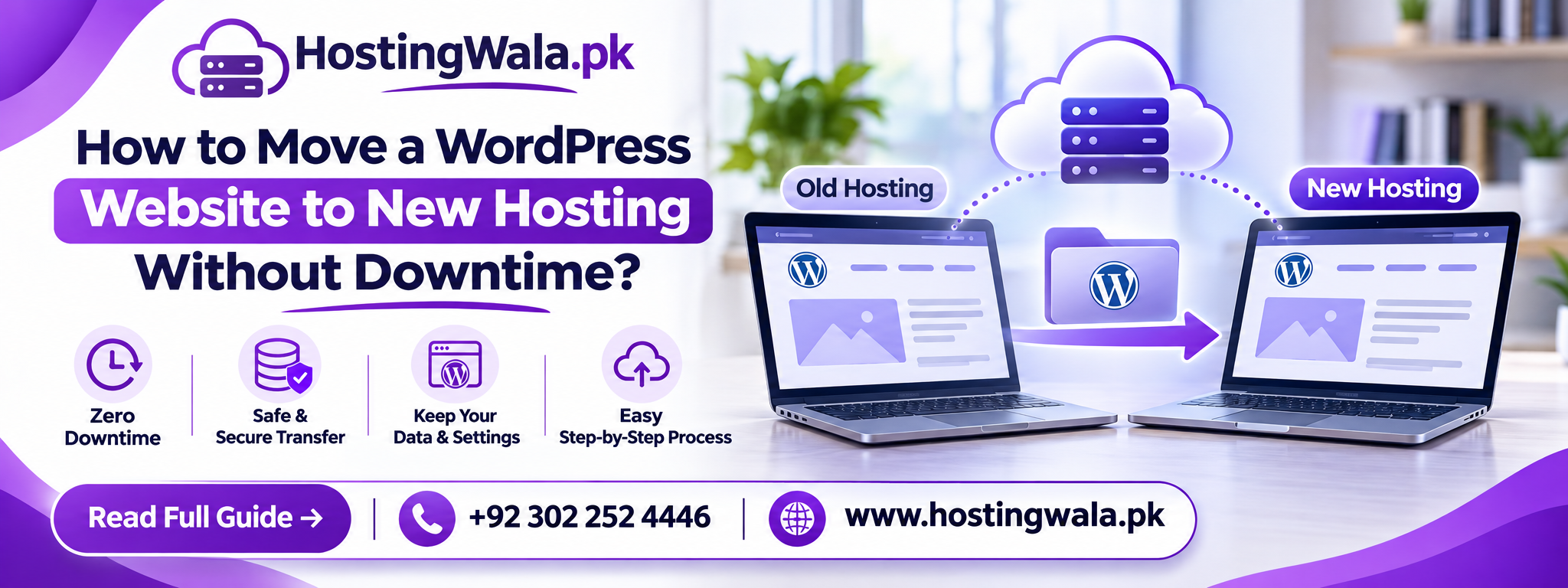
How to Move a WordPress Website to New Hosting Without Downtime
How to move a WordPress website to new hosting without downtime Copy the website to the new server while keeping the old hosting 2. Test everything first then update the domain DNS Do not cancel the old hosting until the new website is fully functional and the DNS change has propagated.
Introduction
Moving a WordPress website to a new host can appear dangerous.
Website owners are usually concerned about:
- Website offline
- Missing files
- Database error
- Pages that are broken
- Missing emails
- SEO issues
Most of these risks can be reduced with a proper migration.
The trick is simple: set up the new hosting first, move and test the website, and then switch the DNS.
Why Do People Switch Web Hosting?
Some common reasons:
- Website is sluggish
- The hosting keeps going down
- Support is bad
- Current plan too expensive
- Server resources are finite
- More security is needed.
- The site has expanded
- Weak email or backup functionality
Changing your hosting doesn’t automatically make a website better, but a better server can help with speed, uptime and stability.
What You Need Before Migration?
Before you start, make sure you have the following:
- WordPress Administrator
- Panel Host Now
- New hosting account
- Domain name server settings
- files website
- Databse
- Email Preferences
- Backup latest
Never start a migration without a backup.
Backup your entire website
Make a full backup of:
- WordPress files
- Database Pictures
- Add ons
- Topics
- Configuration files
- I can use: .
- Backup tools hosting
- Backup cPanel
- WordPress migration plug-ins
- Manually backup files and databases
Keep a copy somewhere other than the old hosting account.
Set Up New Host
Do not point your domain to the new server yet.
Configure the new hosting environment.
Check it out:
- Version PHP
- Database support
- Availability of SSL
- Requirements for WordPress
- Storage
- Email configuration
- Server’s location
- Backup alternatives
Make sure the new server is ready before you start routing live traffic.
Duplicate the WordPress Website
There are two common ways to transfer the website.
Use a Migration Plug-in
Popular migration tools can copy:
- File
- Database
- Add-ons
- Themes 2.0
- Settings WordPress
This is usually easier for smaller and medium-sized sites.
Manual Migration
A manual migration typically consists of:
- Download website files
- Exporting the database
- Uploading files to new host
- Creating database.
- Importing the database
- Change configuration information
Manual migration is more controlled but requires more technical knowledge.
WordPress Migration Methods
| Method | Best For | Difficulty |
| Migration Plugin | Small to medium websites | Easy |
| Hosting Migration Service | Business websites | Easy |
| Manual Migration | Advanced users | Higher |
| Backup Restore | Websites with full backups | Medium |
Test the Website Before You Change DNS
This is one of the most critical steps.
Before sending visitors to the new server, make sure the migrated website works correctly.
- Test
- Home page
- Key pages
- Pictures
- Types of contact
- Plugins Login
- Check out
- Search
- Internal Link
- Mobile-version
- For e-commerce websites, also try:
- Shopping Basket
- Payment process
- Customer sign in
- Order Mails
Resolve any issues before changing the domain settings.
Carefully move email
If your website hosting also offers business email, don’t forget about the email accounts.
Check if you need to recreate:
- E-mail addresses
- Forwarders
- MX Record
- Automatic responses
- Mail boxes in place
If you change hosts without a plan for moving email, you may lose email.
Update DNS
When the new site is functioning properly, change the domain’s DNS or nameservers.
This tells visitors that the site should now be loaded from the new server.
DNS changes don’t always propagate everywhere instantaneously.
Some users will still get to the old server and some to the new for a short period of time.
That’s why the old hosting has to remain up.
How To Prevent Website Downtime
The most safe process is:
- Keep the old hosting going
- Duplicate the website
- Try the new server.
- Update DNS Entry
- Keep both servers live for a while
- Watch website traffic
- Don’t cancel old hosting until migration is completed
This allows visitors to continue accessing the website during the move.
Does changing hosting affect SEO?
As long as the migration is done properly and the website is the same, changing hosting should not normally harm SEO.
Aim to keep:
- Same domain
- Same URLs
- Old same stuff
- Identical page titles
- Same internal links
Same redirects SEO issues happen when pages disappear, URLs change, or the website is offline for a long time.
What Should You Check Post Migration?
After moving the site check:
- Website speed
- SSL Certificate Applications
- Emails
- WordPress Administrator
- Analytics Search Console
- Dead links
- 404’s
- Sitemap Robots.txt
Keep an eye on the website for the first few days.
How can HostingWala help you?
HostingWala offers website owners the freedom to select hosting solutions that match their website size, traffic, WordPress requirements, and support preferences.
When users switch to another provider, proper migration planning is important to minimise downtime and prevent loss of website data.
Before changing hosts, always verify the migration process, the backups and the email requirements.
Common Migration Errors
Don’t make these mistakes:
- Don’t cancel old hosting too early
- Forgetting to backup the database
- Changing DNS before test
- Disregarding e-mail accounts
- Unnecessarily changing URLs
- Forget SSL
- Contact Forms Not Working
- Not verifying mobile pages
Most migration issues come from rushing the DNS change.
FAQs
How to Migrate a WordPress Site Without Downtime?
Yeah . Keep the old hosting online while migrating and testing the website on the new server before changing the DNS.
How long does it take to migrate WordPress?
It is contingent upon the size of the website, the speed of the internet, the hosting setup and whether the migration is manual or automated.
Do I need to change my domain when I change hosting?
Nope. You can keep the same domain just change where it points to.
Will I lose my Google rankings after I migrate?
Not necessarily. If the domain, the URLs, the content and the site availability are the same, rankings shouldn’t just disappear.
Do I need to delete my old hosting after migration?
Not right away. Keep it live until you confirm that the new website and email are working fine and the DNS changes have propagated.
Conclusion
The safest way to migrate a WordPress website to new hosting without downtime is to migrate first and change DNS last.
Full backup, configure the new server, copy the website, test all the things, carefully move email, and keep the old hosting active until everything is working.
With a planned migration you can change hosting without any data loss or unnecessary website downtime.