- 92 302 252 4446
- info@hostingwala.pk
Trusted Website Hosting Agency in Pakistan

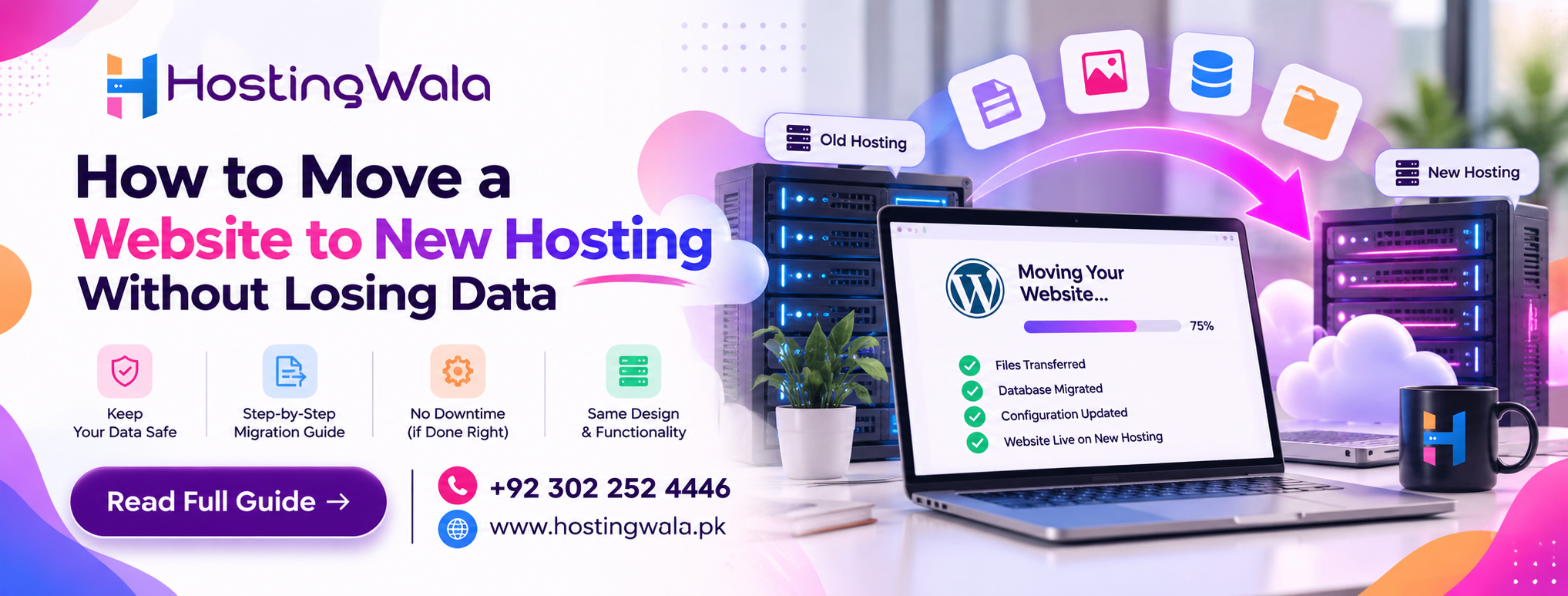
How to Move a Website to New Hosting Without Losing Data
Move a Website to New Hosting Without Losing Data, first make a full backup of your website files and database. Next, upload the backup to the new server, configure the database and website settings, test everything to make sure it works, and finally, update your domain’s DNS settings. For WordPress websites, you will need to transfer both files and database since they are different parts of the website.
Introduction
Changing web hosting doesn’t mean you have to start your website from scratch. A website hosting migration that is properly planned can move your existing website, pages, images, database and other important files to a new server.
The biggest concern is usually data loss or downtime during the transition. The safest is to have a backup of the original website and to make sure the new hosting account is working before changing the DNS records for the domain.
Here is a simple process to follow.
Full site backup
Before you move anything, make sure to take a full backup of your current site.
This usually involves for a WordPress website:
- Website files.
- WordPress database
- Plug-ins
- Theme
- Media and Pictureswp-config.php htaccess
The WordPress documentation states that the website files and the database are two different things, and backing up the files does not automatically back up the database as well.
Also, keep a copy of the backup somewhere outside of your current hosting account.
Configure Your New Hosting Account
Before you purchase or activate your new hosting plan, make sure to cancel your old hosting.
Make what is necessary:
- Account on a web site or domain
- Database User Name Databas
- Database Pass Word
- web directory
If you move to a new hosting provider that has a migration service, you may be able to get them to do most of the transfer for you.
Move Your Website Files
Download your website files from the old server and upload to the correct directory on the new hosting account.
In the case of WordPress, pay close attention to the wp-content folder as it contains important website content such as themes, plugins, and uploaded media.
Don’t delete the original website yet. Keep it at hand until the new version has been well tested.
Export and Import the Database
The database contains important information such as posts, pages, settings, users, and other WordPress data.
Export the database from the old hosting account, usually through a tool such as phpMyAdmin, and import it into the database created on the new server.
After importing it, check that the database name, username, password, and host details in wp-config.php match the new hosting environment. WordPress specifically recommends updating configuration details when database credentials or the database server change.
Check Your Website Before Changing DNS
Before pointing your domain to the new server, test the migrated website.
Check important areas such as:
| Area | What to Check |
| Homepage | Loads correctly |
| Inner pages | No unexpected errors |
| Images | Media files display properly |
| Contact forms | Forms work correctly |
| Login | WordPress admin works |
| Links | Internal links open properly |
| SSL | HTTPS works correctly |
Plugins Important plugins function normally
Testing before the DNS change gives you an opportunity to fix problems while the original website is still available.
Change to New Hosting
Once you have tested your new website, change your domain’s DNS records or nameservers to point to your new hosting provider as they instruct.
DNS changes may take a little while to propagate to different users. During this time some visitors may still be able to access the old server and some the new.
Therefore, wait to cancel your old hosting account until DNS has propagated.
Test Live Website Again.
After the DNS change has propagated, check your website from different devices or networks and check the important pages again.
For WordPress, also go to Settings → Permalinks and save the current permalink structure, if necessary. “After you migrate, you might want to check your permalink and .htaccess settings,” the WordPress documentation states.
Look for:
- 404 error messages
- Images not present
- Dead Link(s)
- Trouble logging in
- Errors in Database
- Redirect problems
- SSL Alerts
How to Prevent Data Loss in Your Hosting Migration
The best migration isn’t about moving all at once. This is about keeping the original website alive until the new version is confirmed to work.
The easiest way is:
Backup → Migrate → Setup → Verify → Update DNS → Verify → Decommission Old Hosting
WordPress also recommends backing up your website before migrating, and backups can be created via hosting tools, plugins, or manually.
Frequently Asked Questions
Will transferring my hosting delete my website?
Switching hosts will not automatically delete your website. But mistakes during a file or database migration can cause problems, so it’s important to take a full backup first.
Is it necessary to move the database?
Yes, for WordPress and many other database driven sites. The database contains important information about the website and needs to be transferred along with the website files.
Should I cancel my old hosting right away?
No. It’s better to keep the old hosting in place until you’ve tested the new website and the domain is pointing correctly to the new server.
Summary
Figuring out how to move a site to new hosting without losing data can make the migration process much easier. The most important steps are: making a complete backup, transferring both files and database, checking the configuration, testing the new server and only changing DNS when everything is ready.
If you are preparing for a hosting migration, a good backup and enough time to test can help ease the transition. Planning your next hosting setup you can also consider HostingWala based on your website requirements.