
- Written by: tanveer.ahmad559@gmail.com
- October 29, 2025
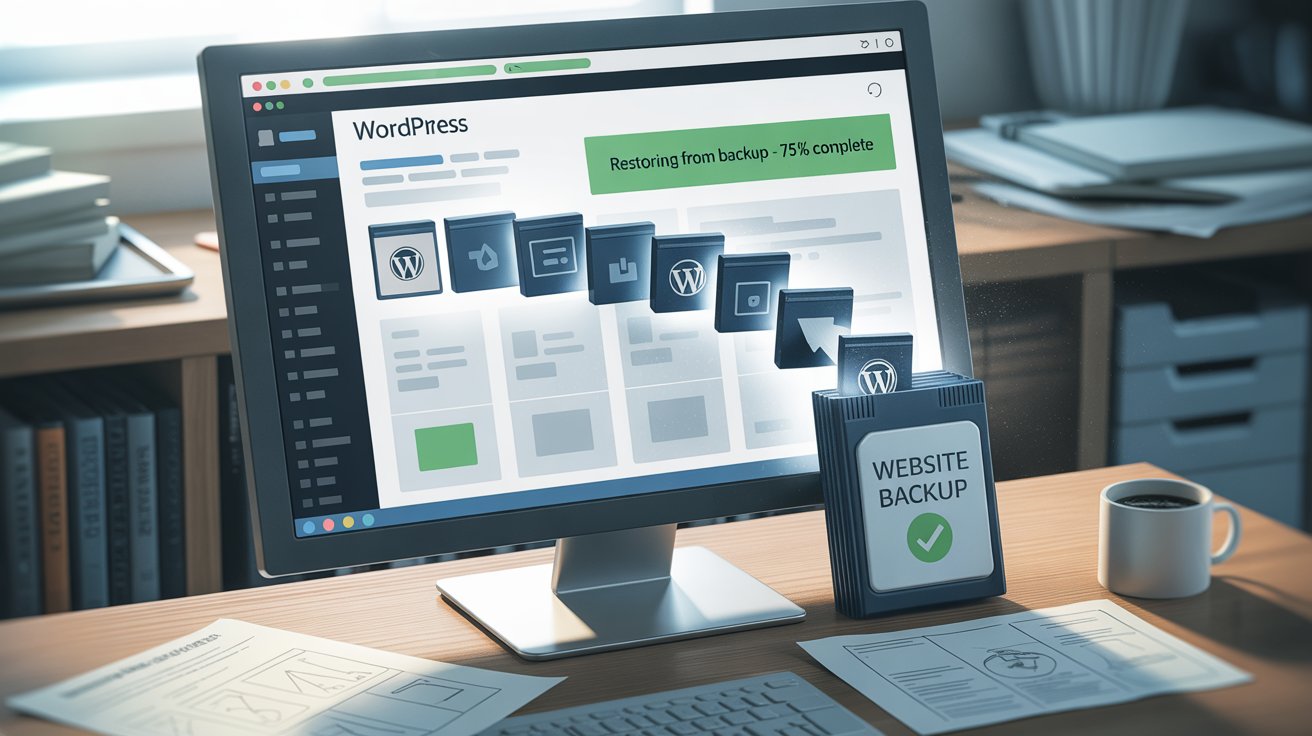
How to Restore WordPress Website from Backup
That sinking feeling is all too familiar. You try to visit your website, only to be greeted by a blank white screen, a cryptic error message, or worse—a hacked site. In moments like these, panic is a natural first reaction. But your second reaction should be a deep, calming breath, because if you have a backup, you have a way out.
Knowing How to Restore WordPress Website from a backup is like having a superpower. It turns a potential disaster into a minor inconvenience. This guide will walk you through the process, step-by-step, using the most common methods. Whether you’re a seasoned developer or a complete beginner, you can get your site back online.
Before You Begin: The Golden Rule of Restoration
Before you touch anything, take this crucial first step: Contact Your Hosting Provider.
At HostingWala, for instance, our support team often creates daily backups for our customers. Your first call should be to see if we can restore your website for you with a single click. This is often the fastest and safest option. If that’s not possible, or if you’re using your own backup, proceed with the steps below.
Method 1: How to Restore WordPress Website from Backup Using Your Hosting cPanel (The Most Common Method)
Most web hosting providers in Pakistan, including HostingWala, offer cPanel with backup tools. This method is ideal if your host creates automatic backups of your entire account.
Here’s How to Restore WordPress Website from a cPanel backup:
- Log in to your cPanel. You can usually find this at
yoursite.com/cpanel. - Find the “Backup” Tool. Look for the “Backup,” “Backup Wizard,” or “JetBackup” icon.
- Choose “Restore.” You’ll likely see options to restore a Full Account, Home Directory, MySQL Database, or Email.
- Restore Your Home Directory. This contains all your WordPress files (themes, plugins, uploads). Select the most recent backup file before the problem occurred.
- Restore Your MySQL Database. This is your site’s content—posts, pages, and user data. This step is critical! Select the appropriate database backup.
- Wait for the Process to Complete. The restore might take a few minutes. Do not close the browser tab.
- Clear Your Cache. Once done, clear your browser cache and any caching plugins on your site (like WP Rocket or W3 Total Cache).
Your website should now be back to its state at the time of the backup.
Method 2: How to Restore WordPress Website Using a Plugin (The Beginner-Friendly Way)
If you use a backup plugin, the process is often more straightforward. This is why we always recommend plugins like UpdraftPlus, BlogVault, or Duplicator to our customers.
Steps to restore with a plugin like UpdraftPlus:
- Re-install the Plugin. If your site is completely down, you may need to reinstall WordPress and your backup plugin fresh.
- Navigate to the Plugin’s Settings. Go to
Settings > UpdraftPlus Backups. - Upload Backup Files. If you have a backup stored on Google Drive, Dropbox, or your computer, you can upload the files from there.
- Click “Restore.” The plugin will show you a list of available backups. Select the one you want.
- Select Components to Restore. You can choose to restore everything or just specific parts, like plugins, themes, or the database.
- Run the Restoration. The plugin will now extract the files and database, replacing the broken ones.
The plugin will guide you through the entire process, making it one of the easiest ways to recover your WordPress site.
Method 3: The Manual Restoration (For Advanced Users)
This method involves using cPanel’s File Manager and phpMyAdmin. It’s more technical but gives you full control.
- Step A: Restore WordPress Files via File Manager
- Go to cPanel > File Manager.
- Navigate to your root directory (usually
public_html).
- Upload your backup ZIP file and extract it, overwriting the existing files.
- Step B: Restore the Database via phpMyAdmin
- Go to cPanel > phpMyAdmin.
- Select your WordPress database.
- Click Import and choose your database backup file (usually a
.sqlfile).
- Click Go to import the data.
After this, you may need to update the wp-config.php file to ensure it’s pointing to the correct database.
Your WordPress Backup & Restoration Checklist
To make sure you’re never caught off guard, follow this checklist:
- I have a recent backup. (Backups should be automatic and frequent).
- I know where my backup is stored. (Is it on my hosting server, Google Drive, or another remote location?).
- I have tested my backup. (Can I successfully restore it on a test site?).
- I have my FTP/cPanel login details handy.
- I have contacted my host’s support team as a first step.
Peace of Mind is Just a Backup Away
We know that dealing with a broken website is incredibly stressful. The single most important thing you can do for your online business is to have a reliable, automated backup and restoration strategy.
If this process feels overwhelming, or if you want the security of knowing experts are handling your backups, consider a managed hosting plan. At HostingWala, we offer managed WordPress hosting with automated daily backups and one-click restoration, so you can focus on your business, not on technical headaches.
Don’t wait for a disaster to strike. [Check out our secure WordPress hosting plans] today and sleep better tonight knowing your website is safe.